Once you’ve assigned coding tasks to your students, you have two main ways to monitor progress, review attempts, and provide feedback.
1. Monitoring Individual Tasks (via Assigned Tasks Table)
-
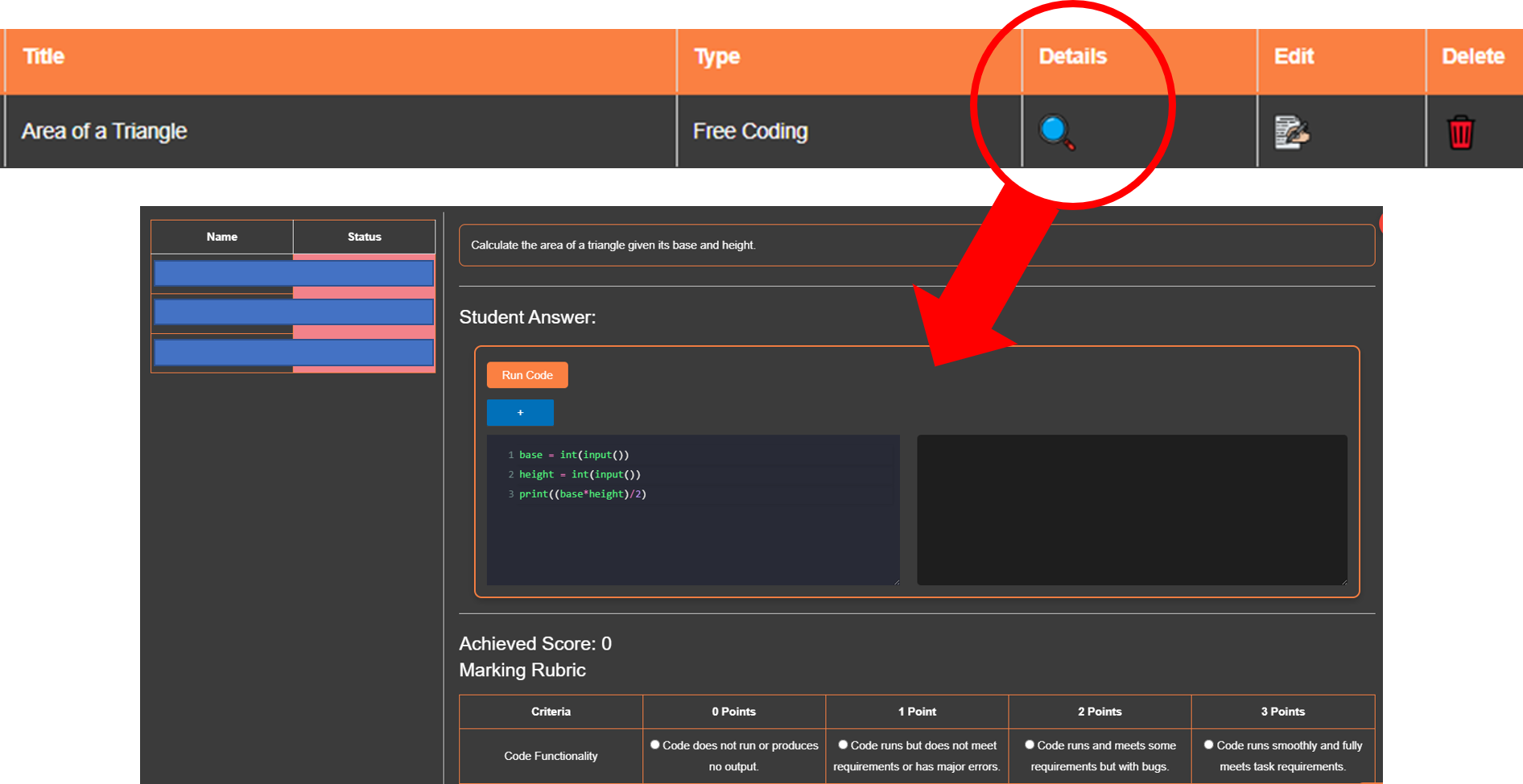
Go to your group’s Assigned Tasks table.
-
For each task, click the Details (magnifying glass) icon.
-
A modal will open, displaying the class list for that group.
-
Select a student to load their attempt. The student’s code will appear in the IDE for review.
-
From here, you can:
-
Review the attempt.
-
Mark the work.
-
Provide feedback directly to the student.
-
Optionally, use aiAnna to automatically generate feedback for the student’s attempt.
-
2. Monitoring All Tasks at Once (via Markbook)
-
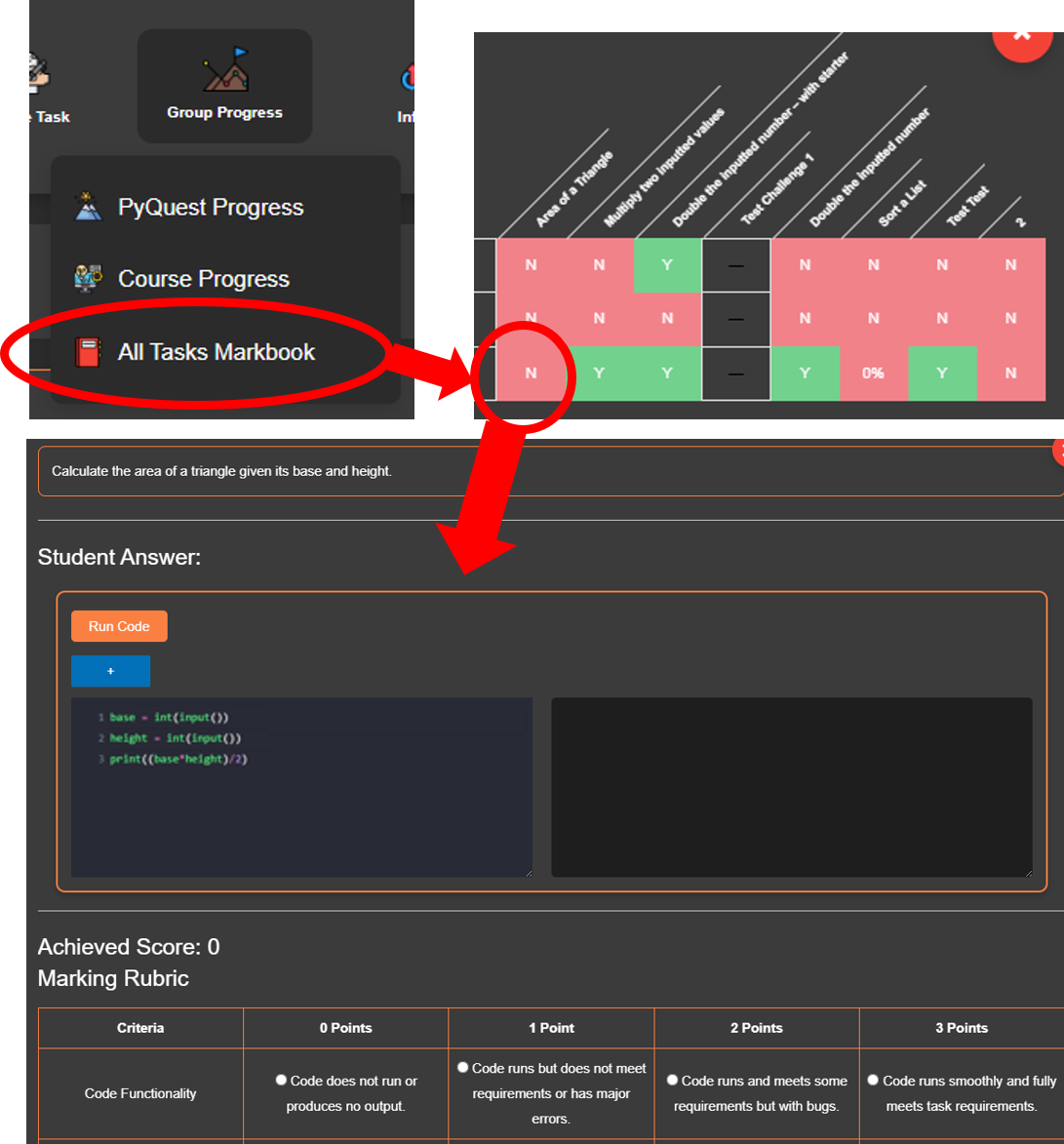
From the group dashboard, open the Group Progress menu.
-
Select All Tasks Markbook.
-
This will display a markbook-style table showing all tasks with deadlines set for that group.
-
Each cell shows a student’s current score for a given task.
-
Click any cell to open a modal with the student’s work/attempt. From there, you can review, mark, and give feedback — just as in the individual task view.
With these two approaches, you can easily track class-wide progress or drill down into individual student attempts, making marking and feedback both efficient and flexible.