Follow these steps to create a new self-marking coding task for your students:
Open the Task Creator
-
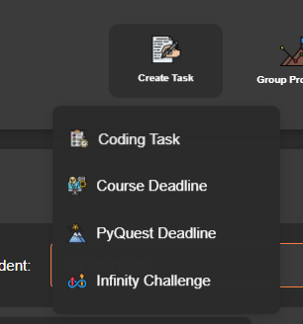
Click the Create Task button from the main menu.
-
Choose Coding Task.
-
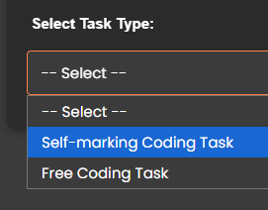
Select Self-Marking Coding Task.
Choose How to Create the Task
-
You can either create a new task or reuse/reload a previous task.

Provide Task Details
-
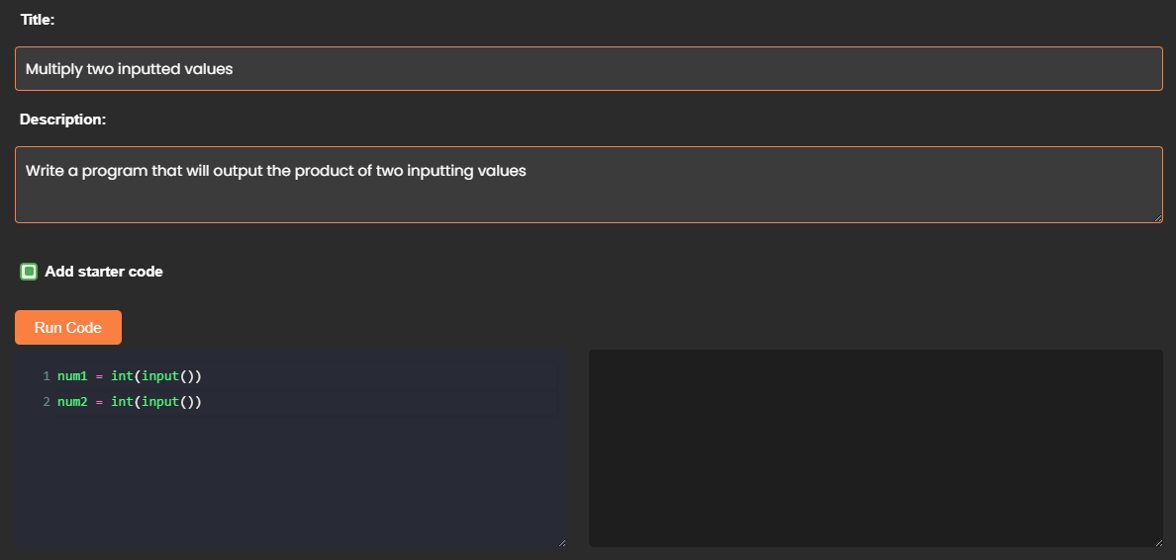
Title: Give the task a clear and descriptive title.
-
Description: Write the instructions you want students to follow. This is what they will see when attempting the task.
-
Starter Code (optional): Toggle the IDE into view if you’d like to provide starter code. This can help scaffold the task for students.
Set Up the Self-Marking Tests
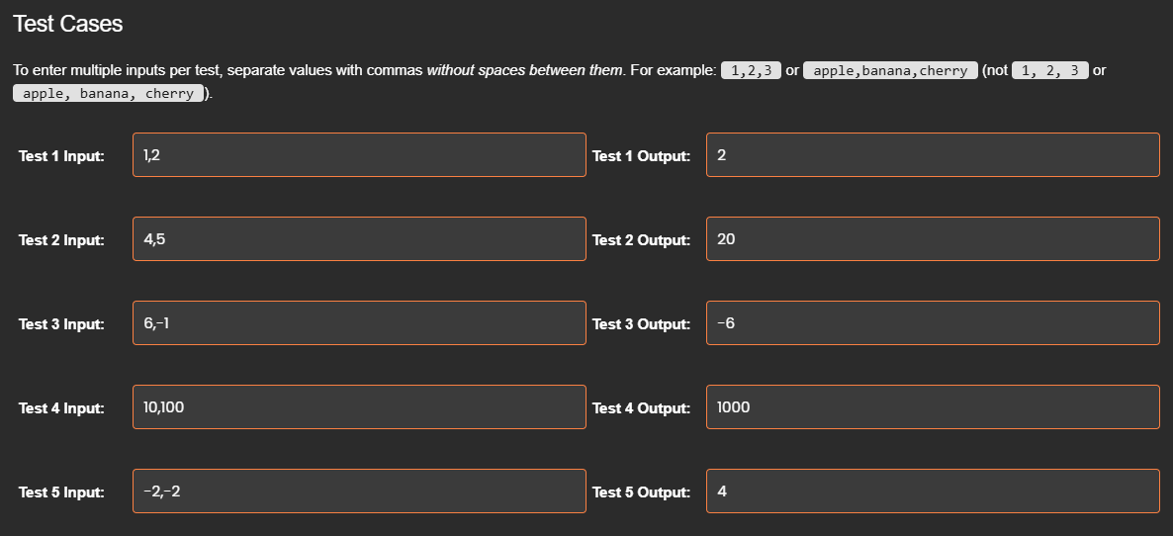
Every self-marking task requires five test cases. Each test consists of:
-
Input(s): The value(s) that will be provided to the student’s program.
-
Expected Output: The exact output the program must produce to pass the test.
Guidelines for entering test inputs:
-
If the program only requires one input, simply enter a single value for each test.
-
Example:
5orhello
-
-
If the program requires multiple inputs, enter them in order, separated by commas with no spaces.
-
✅ Correct:
1,2,3orapple,banana,cherry -
❌ Incorrect:
1, 2, 3orapple, banana, cherry
-
Repeat this process for all five tests, ensuring your expected outputs are written exactly as the program should produce them.
Submit the Task
-
Once complete, click Submit.
-
The task will now appear in your Assigned Tasks table on the group dashboard.

What Happens Next
-
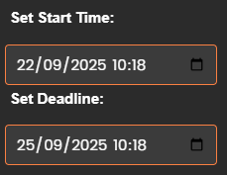
Students: Once the start time has passed, students will see the task in their Deadlines table. They can attempt the task directly in the IDE, and their code will be automatically tested against your five cases.
-
Teachers: You can monitor student progress at any time by clicking the Details (magnifying glass) icon next to the task in the Assigned Tasks table of your group dashboard.