Follow these steps to create a new free coding task for your students:
Open the Task Creator
-
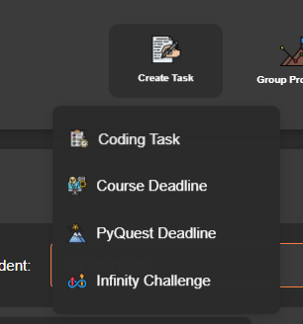
Click the Create Task button from the main menu.
-
Choose Coding Task.
-
Select Free Coding Task.

Choose How to Create the Task
You have three options:
-
Create a new task from scratch.
-
Pick a preset task from the library of 101 challenges.
-
Reload a previous task you’ve already created.

Provide Task Details
-
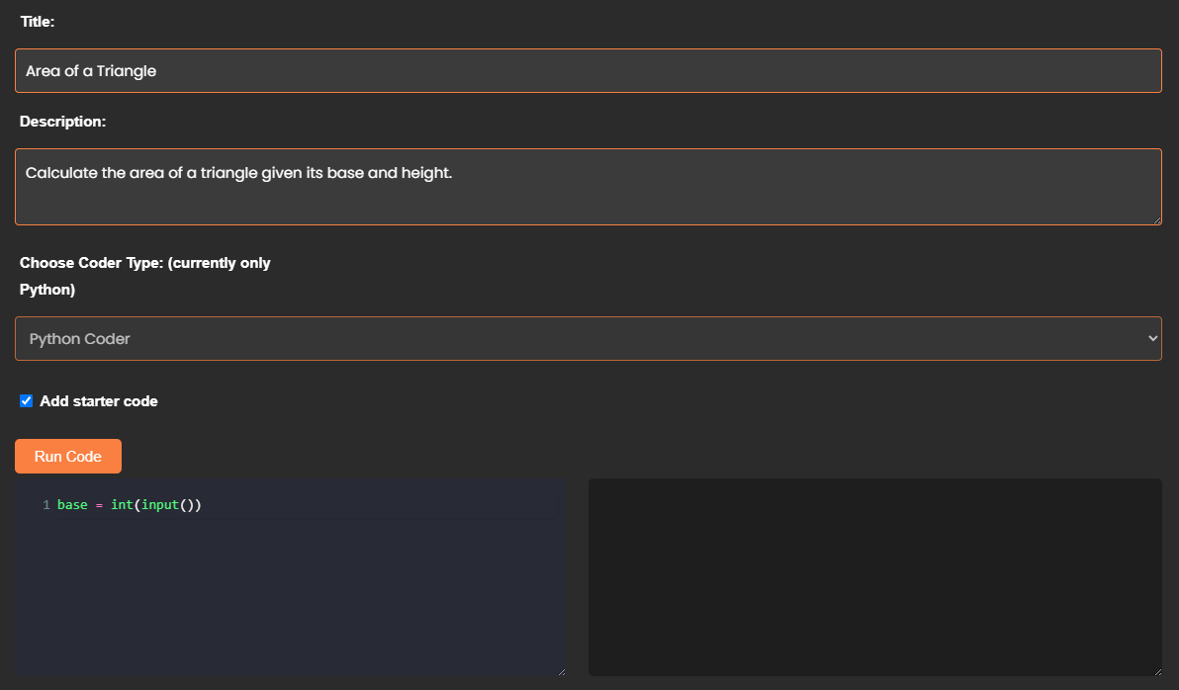
Title: Give the task a clear, descriptive title.
-
Description: Write the instructions for students to follow when completing the task.
-
Starter Code (optional): Toggle the IDE into view if you’d like to provide starter code to support students.
Set or Edit the Rubric
-
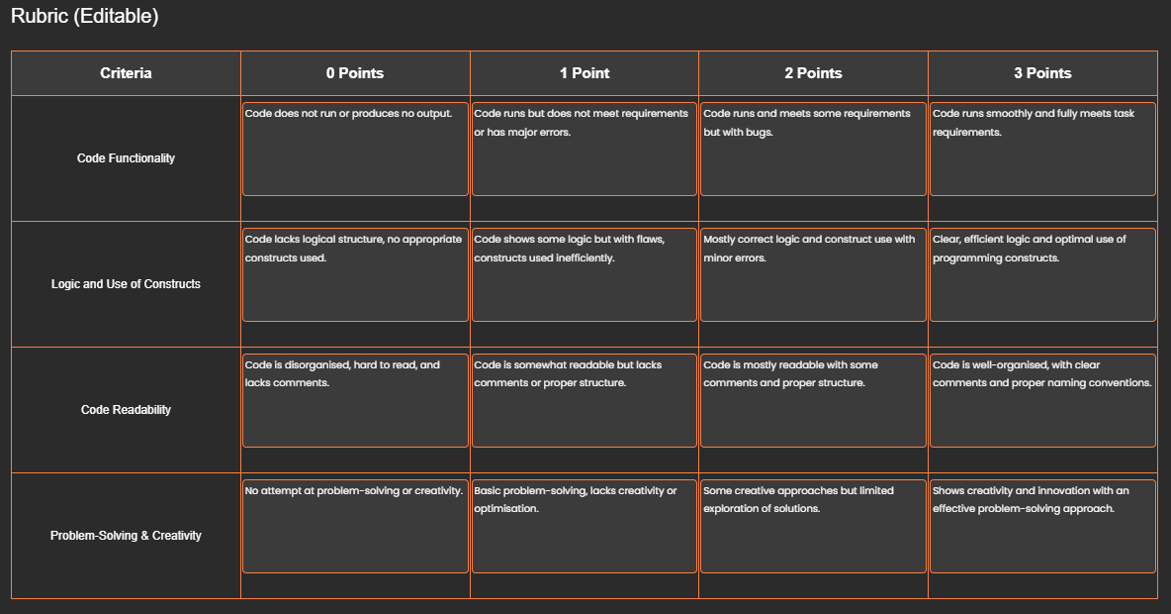
A default rubric is automatically created for every free coding task.
-
If you want to adjust the marking criteria, you can edit the rubric before submitting.
Set Availability
-
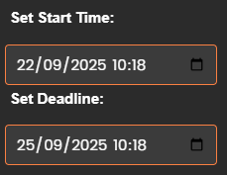
Enter a start time (when students can begin attempting the task).
-
Enter an end time (when the task closes).
Submit the Task
-
Once complete, click Submit.
-
The task will now appear in your Assigned Tasks table on the group dashboard.

What Happens Next
-
Students: After the start time has passed, students will see the task in their Deadlines table. They can open the IDE, attempt the challenge, and submit their code.
-
Teachers: You can monitor progress and review student attempts at any time by clicking the Details (magnifying glass) icon next to the task in the Assigned Tasks table of your group dashboard.